01 · CONFIGURE
Describe the script once
Choose its path, interpreter, working directory, argument order, types, flags, defaults, and log-file input.
Save scripts as reusable profiles, define exactly which inputs they accept, edit values before every run, and follow stdout, errors, and a selected log file in real time.
It is designed for scripts you run more than once: data imports, database maintenance, backups, report generation, file conversion, validation, deployment helpers, and internal automation.
Choose its path, interpreter, working directory, argument order, types, flags, defaults, and log-file input.
Select the saved script and use its generated form. Required values are validated and the exact command is previewed.
Start or stop the job and monitor stdout, stderr, status, exit code, and appended log lines from one screen.
Name the profile and pick the script file. Profiles are independent: selecting a profile loads only the arguments defined for that script.
Leave it as auto to infer from the extension, or enter a command such as cscript, powershell, python, node, or a custom executable available on PATH.
A script that needs no arguments needs no setup here. Otherwise, add one argument row per value or switch and order positional values exactly as the script expects.
Change values in the run form, verify the command preview, then Run. The saved defaults remain reusable for the next run.
The argument name is a friendly label for humans. Type controls the input widget. Flag determines whether the value is positional or named. Required prevents an accidental blank run. Include parameter lets you omit an argument temporarily without deleting it.
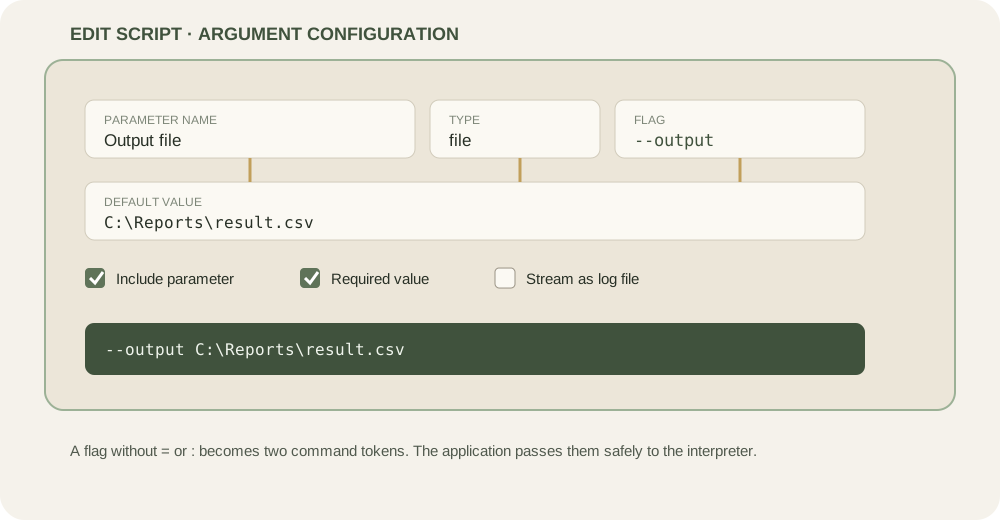
The final character of the Flag field determines whether Script Runner joins the value or passes it as a separate token.
| Flag field | Value | Generated arguments | Use when |
|---|---|---|---|
--output | report.csv | --output report.csv | The parser expects a flag token followed by a value token, typical of Python argparse, Node CLI libraries, and many executables. |
--output= | report.csv | --output=report.csv | The parser expects GNU-style joined syntax with an equals sign. |
/join: | _ | /join:_ | The script expects Windows/VBS-style named arguments joined with a colon. |
| empty | C:\Input | C:\Input | The script reads values by position rather than by name. |
--verbose + Boolean | true | --verbose | The presence of the flag means enabled. When unchecked, nothing is emitted. |
Configure source as folder with --source, limit as number with --limit=, and dry-run as boolean with --dry-run.
Flags without a trailing separator become separate tokens. Boolean WhatIf is omitted when unchecked.
Boolean switches emit only when checked. The join string is attached because its configured flag ends in a colon.
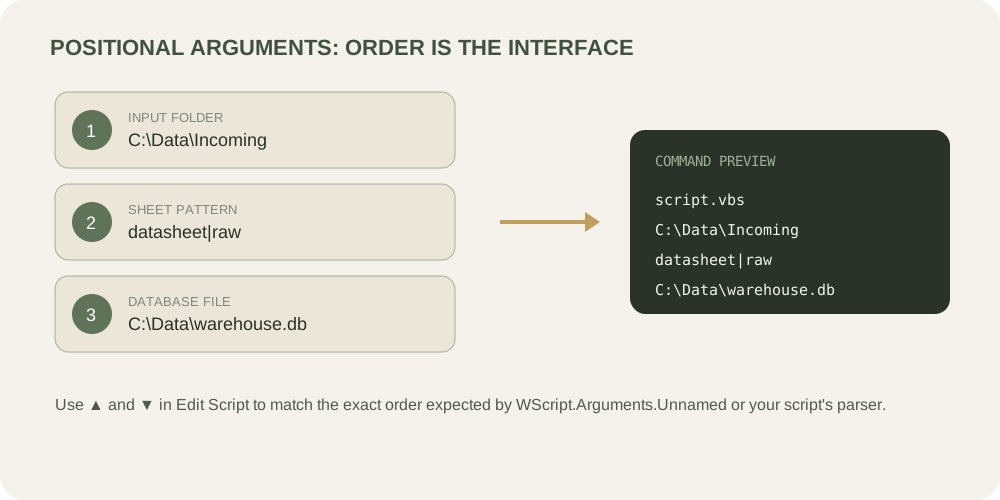
When Flag is empty, values are emitted top to bottom. Use the up and down controls in Edit Script to match the script’s documented argument order.
For VBScript, this commonly maps to WScript.Arguments.Unnamed(0), then Unnamed(1), and so on.
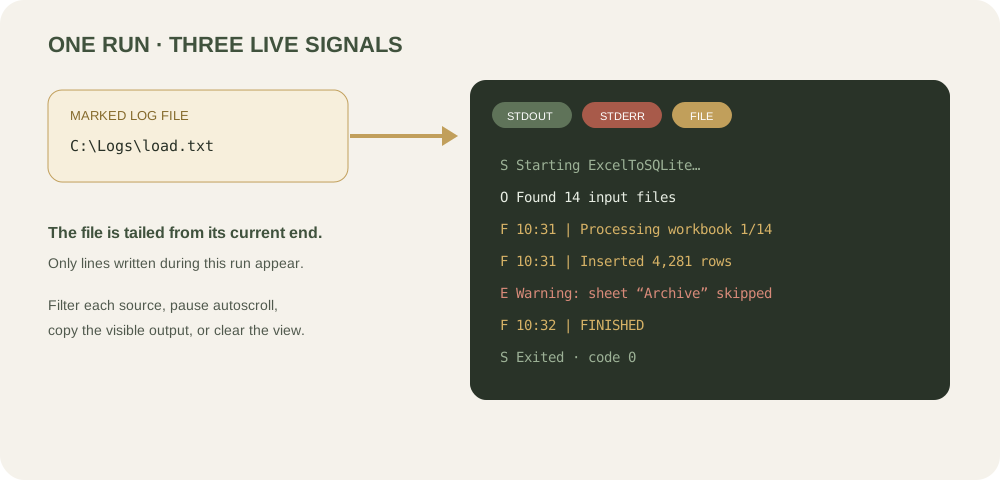
Standard output and standard error are captured directly from the child process. If a file argument is marked Log file, Script Runner also watches it for newly appended text until the run ends.
Existing lines are not replayed—the tail begins at the file’s current end. This keeps each run focused on new activity.
The included v6.1 script demonstrates a mixed interface: nine positional values plus three named switches.
| Order | Name | Suggested type | Flag | Notes |
|---|---|---|---|---|
| 1 | Input folder | Folder | — | Required |
| 2 | Sheet patterns | String | — | Pipe-separated, e.g. datasheet|raw |
| 3 | SQLite database | File | — | Required output database |
| 4 | Final table | String | — | Letters, digits, underscore |
| 5 | Log file | File | — | Mark as Log file |
| 6 | SQLite CLI | File | — | Optional path to sqlite3.exe |
| 7 | Header markers | String | — | Optional pipe-separated list |
| 8 | Mapping workbook | File | — | Required mapping Excel file |
| 9 | Mapping sheet | String | — | Required worksheet name |
| Switch | Multi-row headers | Boolean | /multirow | Emitted only when checked |
| Switch | Test mode | Boolean | /test | No database writes |
| Named value | Join character | String | /join: | Produces e.g. /join:_ |
VBS/VBE use cscript; PowerShell uses powershell; batch files use cmd. ExcelToSQLite v6.1 also requires Microsoft Excel COM automation and is Windows-only.
The Tauri app can be built natively. Python, shell, Node, direct executables, and PowerShell Core can run when their interpreters are installed.
Only run scripts you trust. A configured script executes with the same operating-system permissions as the signed-in user.
The installer contains the Script Runner desktop application. Windows may display an unrecognized-publisher warning because this build is not code-signed.
Script Runner · Windows x64 · Version 0.1.0
Effective date: 1 September 2026
This End-User License Agreement (“Agreement”) is a legal agreement between you (“User”) and the provider of Script Runner (“Provider”). By checking the acceptance box and downloading, installing, accessing, or using Script Runner (“Software”), you confirm that you have read, understood, and agree to this Agreement. If you do not agree, do not download or use the Software.
Subject to this Agreement, Provider grants User a limited, revocable, non-exclusive, non-transferable, and non-sublicensable license to install and use the Software for lawful personal or internal business purposes. No ownership interest in the Software is transferred to User.
Provider does not claim ownership of scripts, commands, arguments, files, databases, logs, output, or other content supplied, selected, generated, or processed by User. User retains all rights User may have in that material and is solely responsible for obtaining permission to use it. Third-party scripts, interpreters, libraries, Microsoft Excel, SQLite, operating systems, and other products remain the property of their respective owners and are governed by their own terms.
The Software is intended for users who understand scripts, command-line arguments, file permissions, interpreters, process execution, logs, and the potential effects of automated operations. User represents that User has sufficient technical knowledge to configure and operate the Software, evaluate scripts before running them, understand generated command previews, maintain backups, and determine whether the Software and each script are suitable for the intended environment.
User is solely responsible for every script selected or executed, every argument supplied, the privileges under which the Software runs, all resulting file or system changes, regulatory compliance, security controls, backups, testing, and recovery plans. User must not use the Software unlawfully; to infringe intellectual-property, privacy, or access rights; to introduce malware; to bypass security controls; or to operate systems without authorization.
User knowingly and voluntarily assumes all risks arising from downloading, installing, configuring, or using the Software and from running any script through it. These risks include data loss or corruption, unintended file changes, incorrect database output, process failure, service interruption, security exposure, disclosure of sensitive data, incompatibility, system damage, and loss of productivity or profits. User is responsible for testing in a safe environment and maintaining current, restorable backups.
TO THE MAXIMUM EXTENT PERMITTED BY LAW, THE SOFTWARE IS PROVIDED “AS IS” AND “AS AVAILABLE,” WITH ALL FAULTS AND WITHOUT WARRANTIES OF ANY KIND. PROVIDER DISCLAIMS ALL EXPRESS, IMPLIED, STATUTORY, AND OTHER WARRANTIES, INCLUDING MERCHANTABILITY, FITNESS FOR A PARTICULAR PURPOSE, TITLE, NON-INFRINGEMENT, ACCURACY, SECURITY, AVAILABILITY, AND ERROR-FREE OPERATION. PROVIDER DOES NOT WARRANT THAT THE SOFTWARE WILL MEET USER’S REQUIREMENTS OR THAT ANY SCRIPT OR RESULT WILL BE SAFE, CORRECT, COMPLETE, OR RECOVERABLE.
TO THE MAXIMUM EXTENT PERMITTED BY LAW, PROVIDER AND ITS OWNERS, CONTRIBUTORS, AFFILIATES, SERVICE PROVIDERS, AND REPRESENTATIVES WILL NOT BE LIABLE FOR ANY INDIRECT, INCIDENTAL, SPECIAL, EXEMPLARY, PUNITIVE, OR CONSEQUENTIAL DAMAGES; LOSS OF DATA, REVENUE, PROFITS, GOODWILL, OR BUSINESS; SYSTEM OR DATABASE DAMAGE; OR COST OF SUBSTITUTE SERVICES, ARISING FROM OR RELATED TO THE SOFTWARE, SCRIPTS, OUTPUT, OR THIS AGREEMENT, REGARDLESS OF THEORY OF LIABILITY AND EVEN IF ADVISED OF THE POSSIBILITY. WHERE LIABILITY CANNOT BE EXCLUDED, TOTAL AGGREGATE LIABILITY WILL NOT EXCEED THE AMOUNT USER PAID FOR THE SOFTWARE, IF ANY, DURING THE TWELVE MONTHS BEFORE THE EVENT GIVING RISE TO THE CLAIM.
To the maximum extent permitted by law, User agrees to defend, indemnify, and hold harmless Provider and its owners, contributors, affiliates, service providers, and representatives from claims, demands, proceedings, losses, liabilities, damages, judgments, settlements, penalties, costs, and reasonable legal fees arising out of or related to User’s scripts, data, configuration, use or misuse of the Software, violation of law or third-party rights, breach of this Agreement, or damage caused to User’s or another person’s systems or data.
Provider is not obligated to provide support, maintenance, updates, compatibility fixes, or continued availability. Any update may be subject to this Agreement or replacement terms. Support, if offered, does not transfer responsibility for User’s environment or scripts to Provider.
This Agreement remains effective until terminated. User may terminate it by stopping use and removing all copies. Provider may terminate the license if User breaches this Agreement. Upon termination, User must stop using and delete the Software. Provisions concerning ownership, risk, warranties, liability, indemnification, and dispute terms survive termination.
If any provision is unenforceable, it will be limited to the minimum extent necessary and the remainder will continue in effect. Failure to enforce a provision is not a waiver. User may not assign this Agreement without Provider’s written consent. This Agreement is the entire agreement concerning the Software unless separate written terms apply. Governing law, venue, and any mandatory consumer rights should be specified and reviewed for the Provider’s applicable jurisdiction before production release.
Questions about this Agreement may be sent to support@madebykris.com.